Why Your Phone Battery Drains So Fast (And How to Fix It)
When Your Battery Betrays You
Smartphones are essential in our daily lives, but many people struggle with fast battery drain. Understanding the common causes can help extend your phone’s battery life and improve performance.
 |
| Person Looking Frustrated At Smartphone With Fast Draining Battery |
You charge your phone to 100%. You step out feeling confident. And then — just a few hours later — the battery is already gasping at 30%.
Sound familiar?
Few things are more frustrating than watching your phone’s battery percentage drop faster than your motivation on a Monday morning — similar to those days when you feel busy but not productive. Whether you're working, studying, navigating, or simply scrolling, rapid battery drain can disrupt your entire day.
The good news? In most cases, your battery isn’t “dying” — it’s reacting to habits, settings, and invisible background processes that quietly consume power.
Let’s break down why this happens and more importantly, how you can fix it.
Why Your Phone Battery Drains So Fast
| Illustration Showing Smartphone Battery Levels Decreasing From Full To Empty |
Battery drain is rarely caused by just one issue. It’s usually a combination of small factors adding up.
1. Background Apps Never Truly Sleep
Many apps continue running even when you’re not using them, acting as hidden energy drains that quietly consume power throughout the day. Social media, email, fitness trackers, and messaging apps constantly refresh content, sync data, and send notifications.
This silent activity eats battery throughout the day.
2. Screen Brightness & Display Settings
Your display is one of the biggest battery consumers.
High brightness
Long screen timeout
Always-on display
Dynamic wallpapers
All of these demand continuous energy.
3. Poor Network Signals
When your phone struggles to find a stable signal, it works harder — repeatedly searching for towers, switching between networks, or boosting antenna power.
Weak signal = higher battery usage.
4. Excessive Notifications
Every vibration, sound, and screen wake-up triggered by notifications drains power. Multiply that by dozens (or hundreds) daily, and you’re draining energy without realizing it where efficiency over effort matters the most.
5. Location Services Overload
GPS is extremely power-intensive. Apps using location tracking — maps, ride apps, weather widgets, social media — can drain battery rapidly if left unrestricted.
6. Battery Aging (Yes, It’s Real)
Lithium-ion batteries degrade over time. After hundreds of charge cycles, the battery simply cannot hold energy like it used to.
This is natural wear, not failure.
A Real-Life Scenario
Imagine this:
You leave home with 85% battery.
You check messages, browse Instagram, play music, and use Google Maps briefly.
By lunchtime — battery at 25%.
Panic mode activated.
You blame the phone.
But behind the scenes:
• Brightness was at 90%
• Bluetooth & GPS stayed ON
• 12 apps refreshed in background
• Network signal fluctuated
The battery didn’t betray you — your settings did.
How to Fix Fast Battery Drain
 |
| Smartphone Showing Battery Optimization Settings To Fix Fast Battery Drain |
Now comes the practical part.
1. Identify Battery-Hungry Apps
Go to:
Settings → Battery → Battery Usage
Check which apps consume the most power.
If an app you barely use is draining battery:
• Restrict background usage
• Force stop
• Uninstall if unnecessary
2. Adjust Screen Settings
Small tweaks make a big difference:
1. Reduce brightness or enable auto-brightness
2. Shorten screen timeout (30–60 seconds)
3. Disable always-on display if not needed
4. Use dark mode (especially on OLED screens)
3. Turn Off Unused Features
Many features stay ON by default:
Bluetooth
GPS
Mobile hotspot
AirDrop / Nearby sharing
Turn them OFF when not needed.
4. Control Background Activity
Enable:
Battery optimization
Adaptive battery / power management
Restrict apps that constantly refresh.
5. Manage Notifications Wisely
Ask yourself:
Do you really need notifications from every app?
Disable alerts from:
• Shopping apps
• Games
• Promotions
• Low-priority apps
Less noise = less battery drain.
6. Limit Location Access
Change permissions to:
“While using the app” instead of “Always”
Disable precise location for non-essential apps.
7. Watch Your Network & Connectivity
If you’re in a low-signal area:
Switch to Airplane Mode temporarily
Use Wi-Fi instead of mobile data when possible
Disable 5G if coverage is inconsistent
8. Avoid Extreme Temperatures
Heat and cold damage battery health.
Avoid:
• Leaving phone in hot car
• Using phone under direct sunlight
• Charging under pillows
9. Charge Smarter, Not Harder
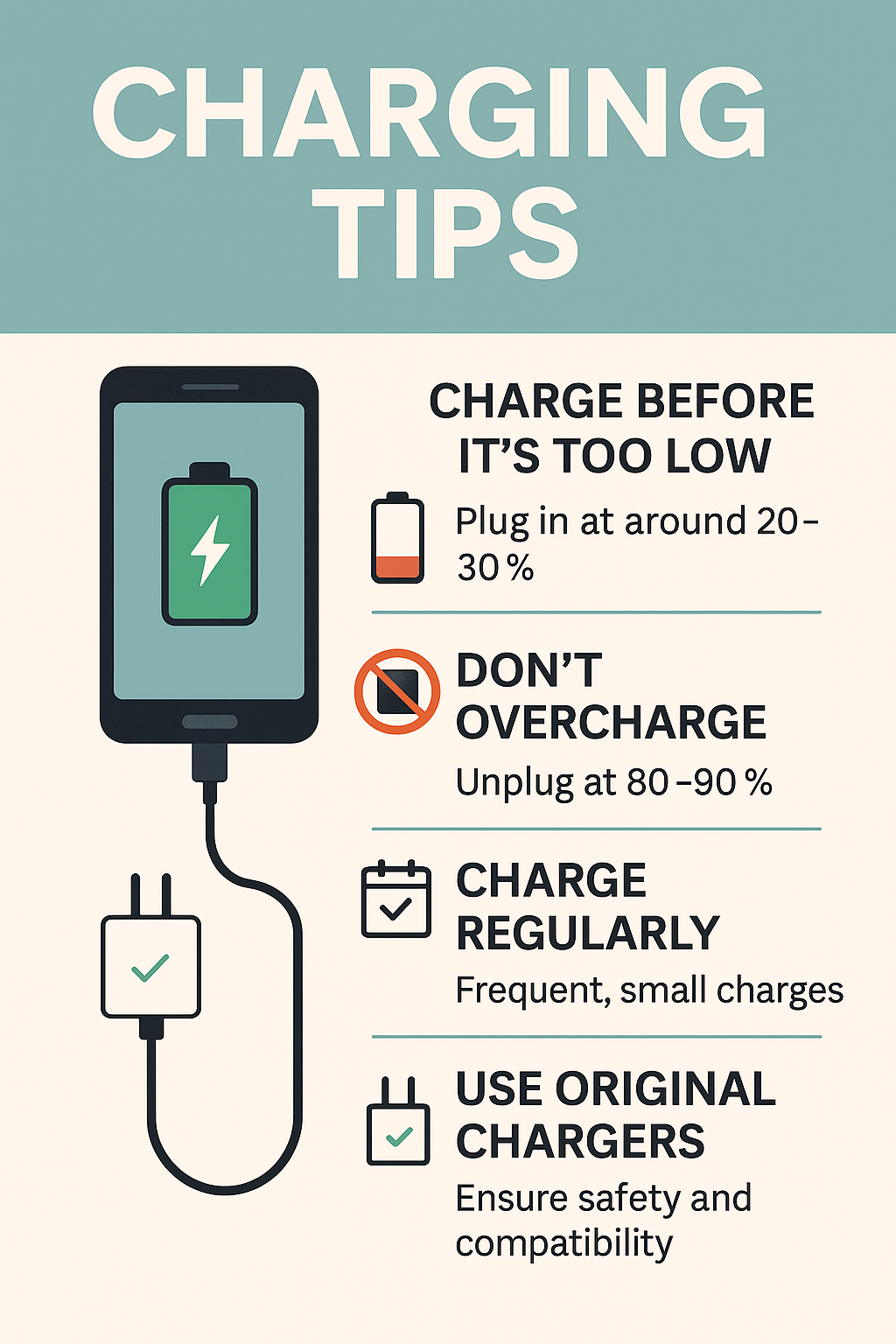 |
| Better Charging Habits Can Significantly Improve Long-term Battery Health |
Battery longevity tips:
Avoid draining to 0% regularly
Keep battery between 20%–80%
Use original or certified chargers
Avoid overnight charging if possible
10. Update Software Regularly
Updates often include:
• Battery optimizations
• Bug fixes
• Performance improvements
Outdated software can drain power inefficiently.
When Should You Replace the Battery?
Consider replacement if:
• Battery drains extremely fast
• Phone shuts down randomly
• Battery health below ~80%
• Device heats abnormally
A fresh battery can make an old phone feel new again.
Your Battery Isn’t the Enemy
Fast battery drain feels like a device failure, but in reality, it’s usually a reflection of usage patterns, settings, and background processes.
The solution isn’t buying a new phone.
It’s awareness.
By making a few intentional adjustments — brightness, apps, connectivity, permissions — you can dramatically improve battery life, a principle that closely reflects the philosophy behind Zen Habits and reduce daily frustration.
Your phone battery doesn’t need miracles.
It needs smarter habits.
Frequently Asked Questions
1. Why is my battery draining even when I’m not using my phone?
Background apps, notifications, syncing, and connectivity features (Wi-Fi, Bluetooth, GPS) continue consuming power even when the phone is idle.
2. Does dark mode really save battery?
Yes — especially on OLED/AMOLED((Organic Light-Emitting Diode/Active Matrix OLED) screens where black pixels use less power.
3. Is it bad to charge my phone overnight?
Occasional overnight charging is fine, but frequent long charges at 100% can accelerate battery aging.
4. Can software updates improve battery life?Yes. Many updates include optimizations that reduce battery consumption.
5. Why does poor network signal drain battery faster?
Your phone uses extra power trying to maintain or find a stable connection.
6. How many years does a phone battery typically last?
Most lithium-ion batteries perform well for 2–3 years before noticeable degradation.
7. Should I use battery saver mode all the time?
It’s helpful when battery is low, but constant use may limit performance and background features.
8. Do widgets drain battery?
Some widgets refresh frequently (weather, news, stocks), which can increase battery usage.


Comments
Post a Comment